
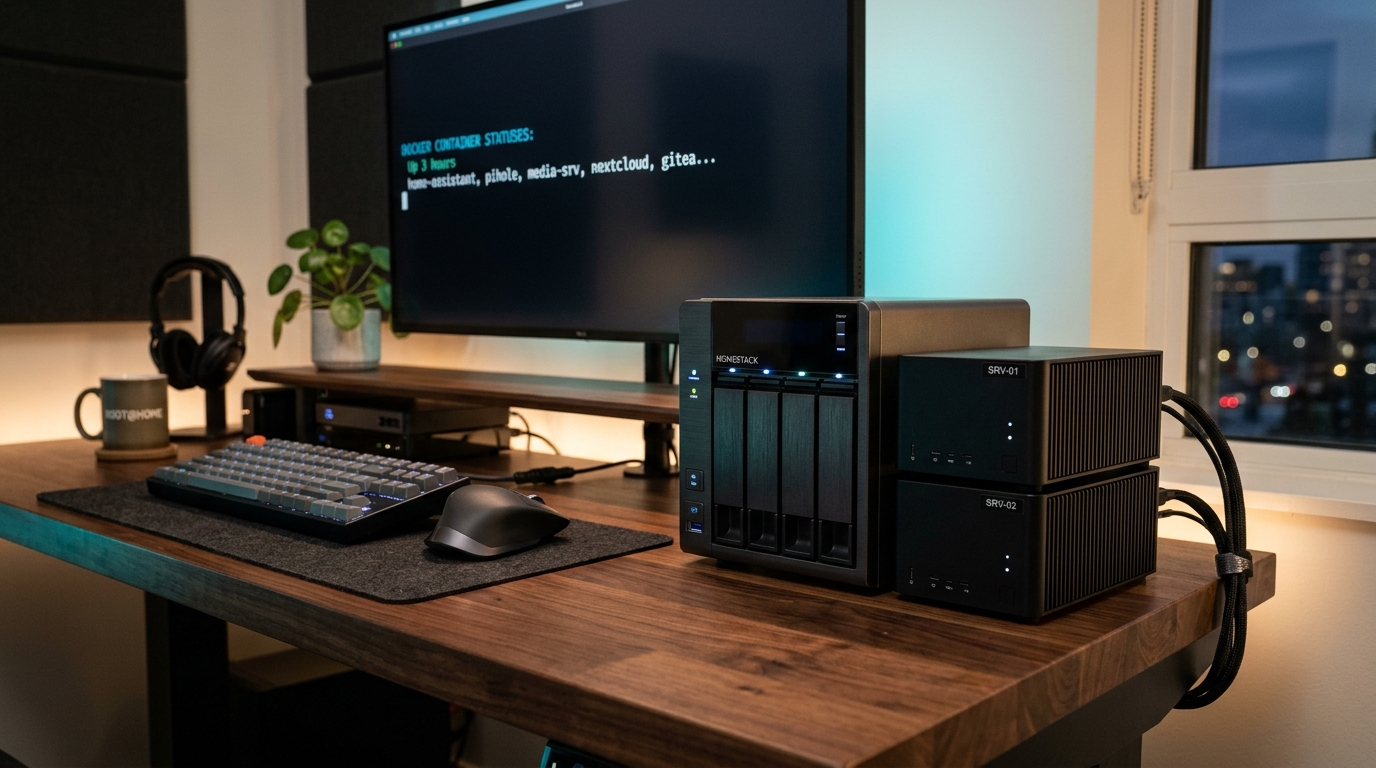
Between relentless SaaS price hikes, recurring streaming subscriptions, invasive privacy policies, and sudden cloud service shutdowns, more developers, technologists, and privacy enthusiasts are taking back control of their data. Building a modern home server in 2026 is no longer a niche, noisy hobby confined to server racks in basements—it is a fast, silent, energy-efficient power move.
Why Build a Home Server in 2026?
If you're asking yourself whether running your own server is worth the initial effort, consider what you actually get once your machine is up and running:
- True Data Sovereignty & Privacy: Your family photos, private documents, health records, and password vaults never get indexed, scanned for ad profiling, or fed into public AI training models.
- Zero Monthly Subscription Fees: Replace Google One, iCloud, Dropbox, Spotify, Netflix, Bitwarden, and remote backup bills with a one-time hardware investment.
- Blazing-Fast Local Network Speeds: Streaming 4K remuxes or transferring multi-gigabyte video projects over a 2.5GbE or 10GbE local network runs circles around any cloud broadband connection.
- Local AI and LLM Inference: With tools like Ollama and lightweight open models, you can run private chat assistants, code completions, and document summarization right inside your home network without sending prompts to third-party APIs.
- The Ultimate Tech Playground: There is simply no better or faster way to master Linux, containerization (Docker & Kubernetes), reverse proxies, DNS routing, and CI/CD pipelines than running them in production on your own hardware.
Running your own home server isn't about avoiding the cloud entirely; it's about shifting the balance of power so you control your most critical data and services.
Step 1: Selecting the Right Hardware
The single most common mistake beginners make is buying an oversized, decade-old enterprise rackmount server off eBay. While cheap up front, enterprise servers are loud, generate intense heat, and can draw 200–400 Watts continuously, leading to astronomical electricity bills. In 2026, efficient silicon has completely transformed home computing.
1. The Refurbished Mini PC (The Best All-Around Choice)
Used 1-liter office PCs (often called TinyMiniMicro) like the Lenovo ThinkCentre Tiny, HP EliteDesk Mini, or Dell OptiPlex Micro with Intel 8th to 12th-gen Core processors can be found refurbished for $100 to $250. They idle at under 10–15 Watts, run near-silently, and feature Intel Quick Sync Video (QSV) which handles simultaneous 4K HDR hardware video transcoding effortlessly.
2. Single Board Computers (Raspberry Pi 5)
Raspberry Pi 5 and comparable ARM SBCs are fantastic for lightweight DNS blocking (Pi-hole), Home Assistant, and low-traffic automation. However, their reliance on external USB drives and lack of multi-bay SATA interfaces make them less suitable for large-scale media storage or heavy Docker stacks.
3. Custom Desktop / Tower NAS
If you need 4 to 8 high-capacity 3.5-inch hard drives for a massive 40TB+ media library or multi-drive ZFS raid arrays, building an mATX or mini-ITX system in a case like the Fractal Node 804 or Jonsbo N3 powered by an efficient Intel Core i3/i5 or AMD Ryzen 5 is the gold standard.
| Hardware Category | Typical Cost | Idle Power | Drive Capacity | Best Suited For |
|---|---|---|---|---|
| Refurbished Mini PC (Lenovo/HP/Dell) | $120 – $280 | 8W – 18W | 1x NVMe + 1x 2.5" SSD | Docker stack, Plex/Jellyfin, Home Assistant, VPN (Beginner to Intermediate) |
| Single Board Computer (Raspberry Pi 5) | $70 – $110 | 4W – 7W | MicroSD / 1x NVMe hat | DNS ad-blocking, network monitor, basic lightweight services |
| Custom Mini-ITX Tower | $450 – $900 | 25W – 50W | 4 to 8x 3.5" HDDs | Large-scale NAS, ZFS storage pools, heavy virtualization, multi-user media |
| Pre-built Commercial NAS (Synology/UGREEN) | $350 – $750 | 20W – 35W | 2 to 6x Hot-swap Bays | Users wanting plug-and-play ease without managing underlying Linux distros |
Step 2: Choosing Your Operating System
Your operating system dictates how you interact with storage, compute, and containers. The four leading choices in 2026 each serve distinct mindsets:
Proxmox Virtual Environment (Proxmox VE)
The Developer & Homelab Champion: Proxmox is an open-source, enterprise-grade Type-1 Hypervisor based on Debian Linux. It allows you to partition your physical hardware into multiple lightweight Linux Containers (LXC) and full virtual machines (VMs) with a sleek web UI. You can run one container for Docker, one VM for Home Assistant OS, and another isolated environment for experimenting without any risk to your primary services.
TrueNAS SCALE
The Storage-First Heavyweight: If data integrity and storage pools are your top priority, TrueNAS SCALE combines the legendary OpenZFS file system with native Linux container support. Features like automated snapshots, bit-rot self-healing, and scrub schedules ensure you never lose a byte.
Unraid
The Media Hoarder's Dream: Unraid is famous for its unique storage array model: unlike traditional RAID where all disks must match in size, Unraid lets you mix and match any combination of hard drives of varying capacities, with one or two dedicated parity drives. Drives spin down independently when idle, conserving power and keeping noise to a minimum.
Debian or Ubuntu Server with Docker Engine
The Minimalist Approach: If you don't need complex virtualization layers or a web management GUI, a bare-metal Debian or Ubuntu Server installation paired with Docker and Docker Compose delivers the leanest resource footprint with zero overhead.
Step 3: Secure Remote Access Without Port Forwarding
In years past, accessing your home server while away meant opening ports on your home router and configuring Dynamic DNS (DDNS). In 2026, you should almost never open raw ports 80, 443, or 22 directly to the public internet unless you are hosting a public website through an authenticated reverse proxy or WAF.
The Modern Solution: Tailscale & Mesh VPNs
Using Tailscale (built on top of the WireGuard protocol) creates an encrypted, peer-to-peer overlay network across all your devices (laptop, iPhone, tablet, home server). You get a private 100.x.y.z IP address for your server that works seamlessly from anywhere in the world—even through airport Wi-Fi, mobile hotspots, and strict carrier-grade NAT (CGNAT)—without a single port forwarded on your router.
# Install Tailscale on your Linux server in 30 seconds
curl -fsSL https://tailscale.com/install.sh | sh
sudo tailscale up --accept-routes
For services you want to share with non-technical friends or family without installing a VPN client, use Cloudflare Tunnels or an encrypted reverse proxy (such as Caddy or Nginx Proxy Manager) fronted by an authentication layer like Authelia or Authentik.
Step 4: The Must-Have Self-Hosted Stack for 2026
Once your base system is up, Docker is the universal standard for deploying applications. Here are the top ten essential self-hosted tools that deliver the highest value right out of the gate:
1. Immich (The Ultimate Google Photos Replacement)
Immich has become the gold standard for self-hosted photo and video backup. It offers instant mobile background sync, facial recognition, duplicate detection, interactive maps, and semantic search powered by local machine learning models—all in a snappy mobile app that feels just like Google Photos.
2. Jellyfin (Free, Open-Source Media Streaming)
Unlike Plex, which has added cloud accounts, ad-supported free channels, and paid Plex Pass requirements, Jellyfin is 100% free and open-source. It streams your personal movie, television, and music library to your Apple TV, Roku, Fire TV, or mobile devices, supporting hardware-accelerated transcoding on Intel Quick Sync and NVIDIA GPUs.
3. Vaultwarden (Lightweight Password Management)
An alternative Bitwarden-compatible server written in Rust. It consumes less than 50MB of RAM, integrates with official Bitwarden browser extensions and mobile apps, and gives you total control over your encrypted credential vaults, passkeys, and two-factor tokens.
4. Pi-hole or AdGuard Home (Network-Wide Ad & Tracker Blocker)
Act as your local DNS sinkhole, intercepting and dropping tracking queries, telemetry, and banner ads before they ever reach your smart TVs, IoT devices, tablets, or phones. Your entire home network feels noticeably faster and cleaner.
5. Nextcloud / Seafile (Personal Cloud Storage & Collaboration)
Sync files across all your machines, share secure time-limited download links, and collaborate on documents without paying monthly storage fees to cloud hyperscalers.
6. Home Assistant (Privacy-First Smart Home Hub)
Bridges smart lights, sensors, switches, thermostats, and cameras across different ecosystems (Matter, Zigbee, Z-Wave, HomeKit) into locally executed automations that never fail when your internet service provider experiences an outage.
7. Uptime Kuma (Clean Service Monitoring)
A self-hosted monitoring tool that pings your internal and external services over HTTP, TCP, or DNS, complete with gorgeous status pages and instant Telegram or Discord notification webhooks if an endpoint goes down.
8. Portainer (Visual Container Management)
If you prefer a clean GUI for inspecting running containers, managing Docker volumes, checking logs, and diagnosing resource bottlenecks, Portainer makes container orchestration intuitive.
9. Watchtower (Automated Container Upkeep)
Monitors your running Docker containers and cleanly updates them whenever new image digests are pushed to their respective registries, keeping your stack patched and secure automatically.
10. Ollama + Open WebUI (Local Offline AI Studio)
Run open-weights language models (like Llama 3, Mistral, and DeepSeek) directly on your home server. Open WebUI provides a ChatGPT-quality browser interface with chat history, document uploads (RAG), and zero telemetry.
Starter Docker Compose Configuration
Here is a clean, battle-tested docker-compose.yml file demonstrating how to bundle several core services together on an isolated internal bridge network with persistent volume storage:
services:
  # Network-wide DNS Ad & Telemetry Blocker
  adguard-home:
    image: adguard/adguardhome:latest
    container_name: adguard_home
    restart: unless-stopped
    ports:
      - "53:53/tcp"
      - "53:53/udp"
      - "3000:3000/tcp"
      - "8080:80/tcp"
    volumes:
      - ./data/adguard/work:/opt/adguardhome/work
      - ./data/adguard/conf:/opt/adguardhome/conf

  # Bitwarden-compatible lightweight password vault
  vaultwarden:
    image: vaultwarden/server:latest
    container_name: vaultwarden
    restart: unless-stopped
    environment:
      - WEBSOCKET_ENABLED=true
      - SIGNUPS_ALLOWED=false # Disable once your account is created!
    volumes:
      - ./data/vaultwarden:/data
    ports:
      - "8081:80"

  # Lightweight uptime monitor & status page
  uptime-kuma:
    image: louislam/uptime-kuma:latest
    container_name: uptime_kuma
    restart: unless-stopped
    volumes:
      - ./data/uptime-kuma:/app/data
    ports:
      - "3001:3001"

  # Automatic Docker container update monitor
  watchtower:
    image: containrrr/watchtower
    container_name: watchtower
    restart: unless-stopped
    volumes:
      - /var/run/docker.sock:/var/run/docker.sock
    environment:
      - WATCHTOWER_CLEANUP=true
      - WATCHTOWER_SCHEDULE=0 0 4 * * * # Update nightly at 4:00 AM
Step 5: The 3-2-1 Homelab Backup Strategy
The single most dangerous trap for new homelabbers is mistaking redundancy (RAID or ZFS mirror) for a backup. RAID protects against physical drive failure; it does not protect against accidental file deletion, ransomware, corruption, or house fires.
Follow the trusted 3-2-1 rule:
- 3 Copies of Critical Data: One primary live copy, one local backup, and one remote backup.
- 2 Different Media Types: For example, internal NVMe/HDD storage + an external offline USB drive or secondary NAS.
- 1 Offsite Copy: Use tools like Restic, BorgBackup, or Kopia with client-side zero-knowledge encryption to push daily deduplicated snapshots to inexpensive cloud storage providers like Backblaze B2 or Hetzner Storage Box ($5–$6/month for a terabyte).
Power Consumption & Operating Cost Breakdown
Many newcomers worry that running a server 24/7/365 will dramatically spike their electric bill. Let's do the math for a modern 1-liter Mini PC idling at roughly 12 Watts:
- 12 Watts × 24 hours × 365 days = 105.1 kWh per year
- At an average North American electricity rate of $0.14 per kWh: ~$14.70 per year (about $1.22 per month).
Even a 4-bay custom tower idling around 35 Watts costs approximately $43 per year. Compared to paying $20/month for Google One + $15/month for Netflix + $10/month for cloud password managers, a home server pays for its own hardware in under 12 to 18 months.
Frequently Asked Questions
Do I need to be a Linux expert to start?
Not at all. Operating systems like Unraid, TrueNAS SCALE, and modern Proxmox feature polished web interfaces. With hundreds of copy-paste Docker Compose templates available from communities like r/selfhosted and LinuxServer.io, you can build confidence incrementally.
Can I run a home server if my ISP uses CGNAT?
Yes! With Tailscale, Cloudflare Tunnels, or reverse SSH tunnels to a $4/month VPS, you can access your home server from anywhere without requiring a public IPv4 address or contacting your ISP.
What should I do if my home loses power?
Invest $60–$120 in a basic Uninterruptible Power Supply (UPS) from brands like APC or CyberPower. Connect the USB signaling cable to your server and configure apcupsd or Network UPS Tools (NUT) to automatically trigger a clean system shutdown before the battery drains, avoiding file system corruption.
Final Thoughts: Start Small, Iterate Often
The best homelab is not the one with the flashiest rack or the most expensive enterprise hardware. It is the one that quietly, reliably serves your daily needs while giving you peace of mind and complete ownership over your digital life.
Dust off an old laptop or pick up a refurbished $150 Mini PC this weekend, install Linux, launch your first Docker container, and experience the joy of true digital autonomy.